
Why new customers paid for shipping during a free shipping promo
In short: During a free shipping weekend, the 20% welcome code and the free shipping discount weren't set to combine, so new customers had to pick one. 28 of the 41 who used the code took 20% off and paid for shipping. Before any sitewide promo, place one test order on mobile with a small cart and the welcome code applied.
A free shipping weekend is supposed to remove the last reason not to buy. For one store, it quietly charged shipping to most of the new customers who had just been handed a welcome discount. Nothing was broken. Two discounts simply hadn't been told they were allowed to work together.
The setup
Field note · Checkout
- The promo
- Free shipping on every order, for a 4-day weekend.
- Welcome code
- 20% off for new customers, offered in the site pop-up and in the welcome email.
The catch: the two weren't set to combine. At checkout, new customers had to pick one.
20% offorFree shipping
Both offers did exactly what they were built to do. The welcome code reached the people it was meant for, first-time customers, and the free shipping discount was live on every order. The problem only appears when a shopper tries to use both at once.
What happened
On one day of the promo the store took 108 orders. The only difference between them was whether the customer used the welcome code.
- 41 orders used the welcome code. 28 of those customers took the 20% and paid for shipping. The other 13 chose free shipping instead.
- 67 orders used no code. All 67 got free shipping, as advertised.
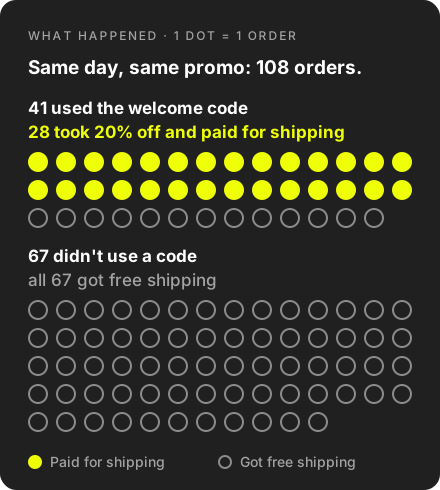
So during a weekend advertised as free shipping, more than two thirds of the new customers who used their welcome code (28 of 41) paid for shipping anyway. Those are the customers a brand most wants to impress: it's their first order.
And these are only the people who finished. Anyone who saw shipping charges on a "free shipping" weekend and closed the tab isn't in the 108 orders at all.
Why it happens
Most ecommerce platforms treat each discount as standalone unless you say otherwise. In Shopify, every discount has a Combinations setting that controls which other kinds of discount it can be used with:
- Product discounts, such as 20% off a collection;
- Order discounts, such as a welcome code for 20% off the cart;
- Shipping discounts, such as free shipping.
A welcome code is usually an order discount and a shipping promo is a shipping discount. If they aren't set to combine, the customer gets one or the other. New codes start with combinations switched off, and the setting is easy to miss when a promo is set up in a hurry.
The fix: one test order before every sitewide promo
Before any sitewide promo goes live, place one real test order the way a new customer would:
- Use a phone, in a private browser window, so you see the site as a new visitor does.
- Keep the cart small. A single low-priced product is the case most likely to show a shipping charge.
- Apply the welcome code, plus any code from the current pop-up or email.
- At checkout, check both lines: the discount is applied and shipping shows as free.
If either is missing, fix the combinations before launch. In Shopify, open the welcome code under Discounts and allow it to combine with shipping discounts. Then open the free shipping discount and allow it to combine with order discounts (and product discounts, if you run any). Place the test order again.
The test takes five minutes. Repeat it for every promo combination that's live at the same time, such as bundles, gift-with-purchase offers or a second email code.
How to check after a promo
Export the orders from the promo period and filter by discount code. Any order that used a code and was charged shipping during a free shipping promo is a customer who got less than you advertised. It's also a good list to send a quick apology or a shipping refund to.